
PowerPoint
Want to elevate your PowerPoint presentations with polished, professional transitions? These seven transition effects help control pacing, emphasize key points, and keep audiences engaged—without looking unprofessional.
Fade Slide Transition Effect
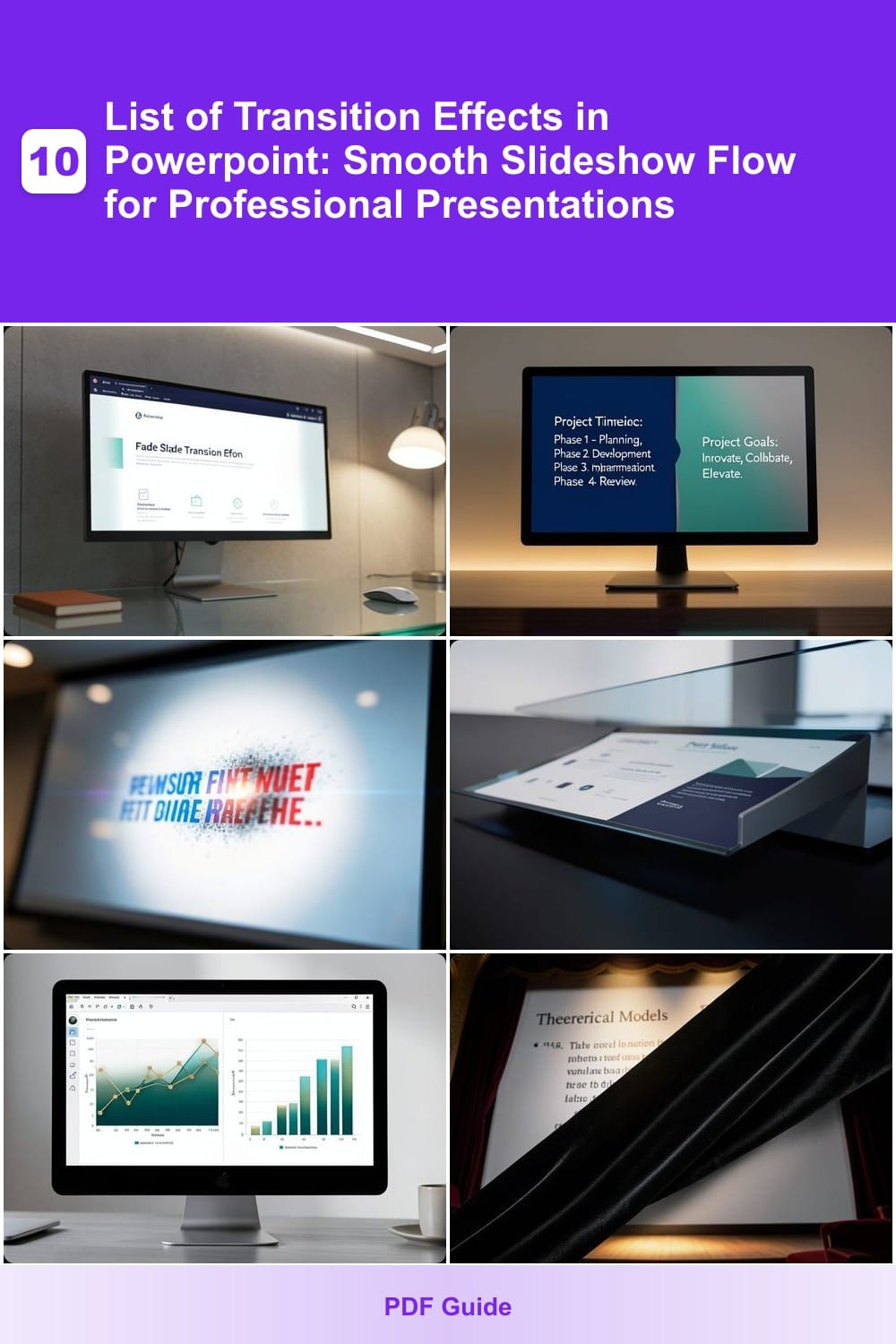
Tired of transitions that steal focus from your message? The Fade Slide Transition Effect in PowerPoint is the secret weapon for polished, distraction-free presentations. It smoothly dissolves one slide into the next, ensuring your content remains the star while maintaining a sleek, professional look.
Available in all modern PowerPoint versions (2013, 2016, 2019, and 365), this transition works seamlessly with any design—dark themes, light themes, or even high-contrast layouts. The zero-motion design means no abrupt shifts or eye-catching animations, making it ideal for corporate decks, client pitches, or internal reports. Plus, it’s universally compatible across devices and operating systems.
Perfect for executives, educators, and trainers who prioritize clarity over flash. Use it to keep audiences engaged without overstimulating their visual processing. ✨
Slide Horizontal Pane Effect
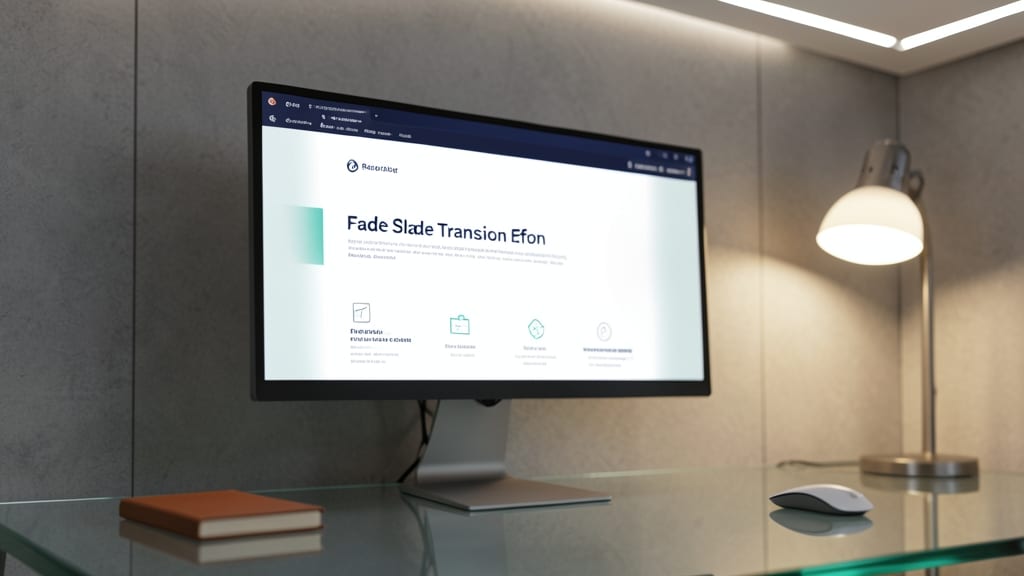
Need to walk your audience through a process or tell a story with clear direction? The horizontal pane effect turns your slideshow into a guided tour, sliding one slide out while the next glides in from the side like a sleek, modern accordion.
This transition works best in PowerPoint 2013+ (including Office 365) and pairs perfectly with sequential layouts—think tutorials, onboarding decks, or case studies. The directional motion subtly cues viewers to follow along, reducing cognitive load. For extra polish, pair it with matching slide layouts (e.g., consistent side panels) to reinforce the flow.
Perfect for educators, trainers, or anyone breaking down multi-step workflows—this effect keeps focus sharp while making complex info feel effortless. ✨
Zoom Slide Transition Effect
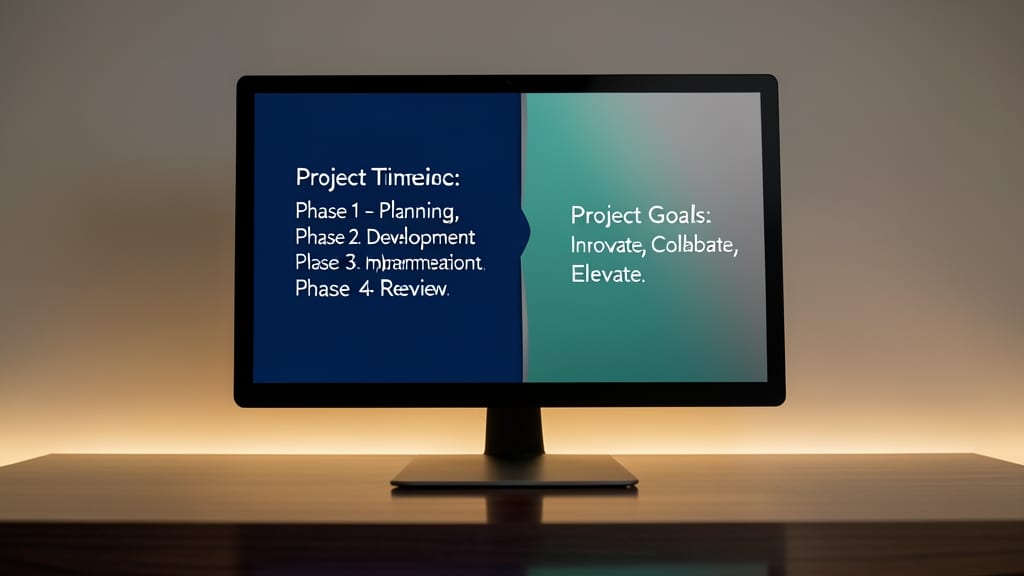
Need to make a slide pop during a keynote or highlight a pivotal moment? The Zoom Slide Transition Effect delivers cinematic flair by smoothly zooming in from a blurred background, ensuring your message commands attention.
This effect works by creating a 3D-like zoom (available in PowerPoint 2013+) that starts with a soft blur, then sharply focuses on the new slide. You can adjust the zoom speed and direction (in/out) to control pacing, and it pairs well with dark or high-contrast slide backgrounds for maximum impact. Just avoid overusing it—save it for your 3-5 most critical slides to maintain professionalism.
Perfect for product launches, conference talks, or training sessions where you want to underscore a key takeaway. Just test it in Slide Show mode first to fine-tune the timing. ✨
Push Slide Transition Effect
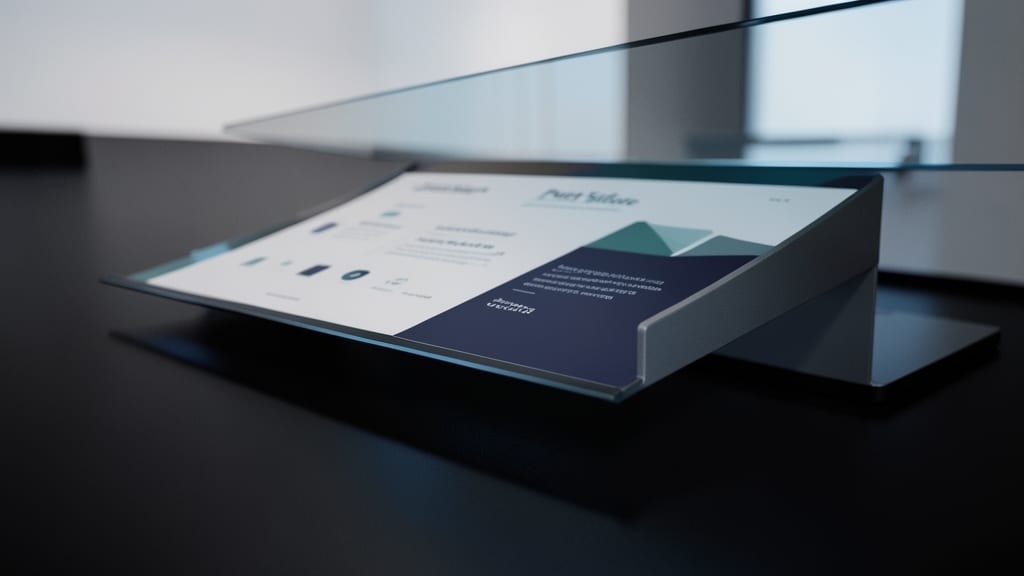
Need a transition that feels dynamic yet controlled? The Push Slide Transition Effect injects motion into your presentation without stealing focus from your content. Unlike fade or zoom effects, it creates a side-to-side "push" where one slide glides out while the next slides in, mimicking a physical motion that feels intentional and engaging.
This effect works best with PowerPoint 2013 and later, including the desktop and online versions. You can adjust the speed (slow for emphasis, fast for pacing) and even set it to loop for training modules where repetition reinforces learning. The visual cue of movement helps signal transitions between topics, making it ideal for interactive workshops or creative pitches where energy matters.
Trainers and designers love this effect for its subtle dynamism—it’s bold enough to keep audiences alert but never distracts from key messages. Perfect for when you want slides to "move" without overwhelming the viewer. ✨
Morph Slide Transition Effect
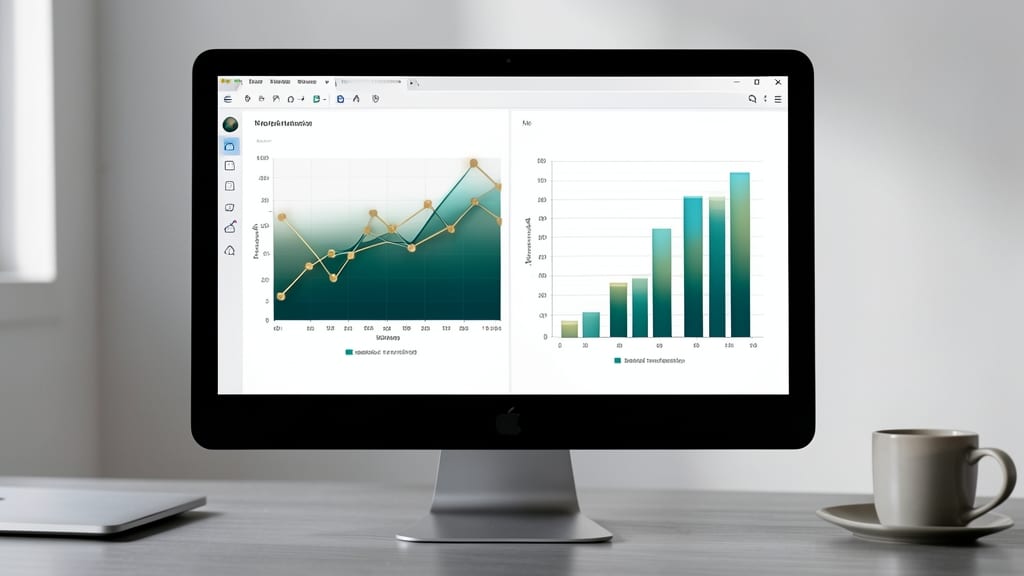
Tired of jarring slide breaks disrupting your data-driven presentations? The Morph transition in PowerPoint (available in 2016+ and 365) is designed specifically for this—seamlessly transforming one chart or graph into another while preserving visual context.
This effect works its magic by animating shape changes between slides with identical layouts (e.g., converting a bar chart to a line graph). The result? A smoother cognitive flow for audiences, as they don’t need to mentally reset between slides. For best results, use it with identical slide structures—PowerPoint’s built-in alignment tools help maintain consistency.
Perfect for analysts, researchers, or anyone presenting complex datasets where continuity matters. Just avoid overusing it with wildly different layouts—stick to similar data visualizations for the cleanest effect. ✨
Wipe Slide Transition Effect
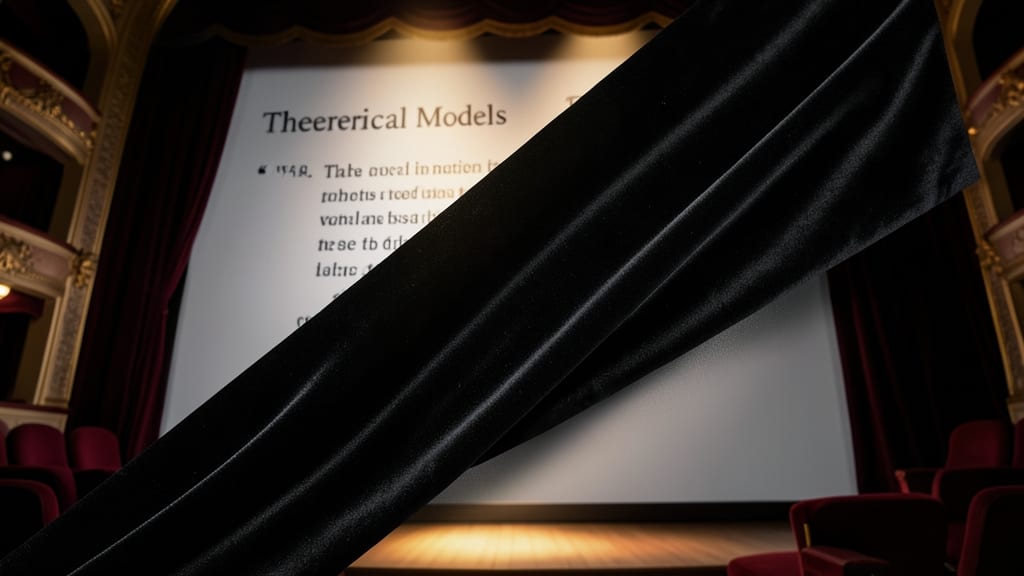
When you need to visually signal a shift between topics—like moving from theory to practice in training videos—the Wipe Slide Transition Effect delivers a cinematic, directional punch. Unlike subtle fades, this effect mimics a physical curtain or shutter, wiping left, right, up, or down to reveal the next slide with intentional motion.
PowerPoint offers five wipe directions (horizontal, vertical, and diagonal), each customizable with speed adjustments (1-10 seconds) and sound effects for added impact. The vertical wipe works best for emphasizing progression (e.g., "Step 1 → Step 2"), while diagonal wipes add a dynamic flair for creative projects. Just ensure your content isn’t too dense—this transition thrives on clarity and intentionality.
Ideal for designers, educators, and trainers, this effect shines when you want to guide attention without overwhelming it. Pair it with bold typography or minimalist backgrounds to let the transition’s directionality take center stage. ✨
Random Bars Transition Effect
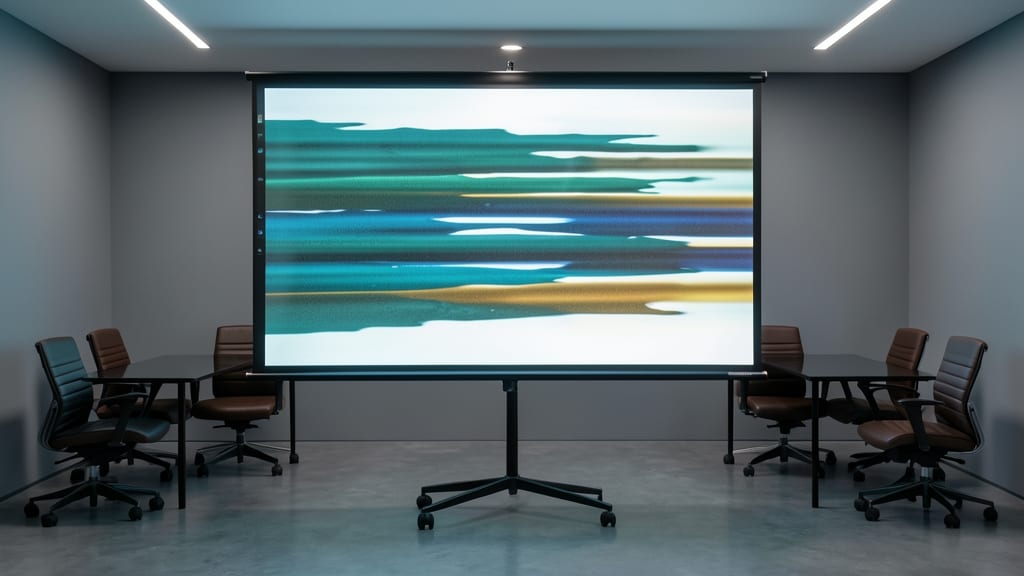
Tired of the same old slide transitions? The Random Bars effect injects energy into your presentations with a dynamic, abstract dissolve—perfect for breaking up routine content in team meetings or brainstorming sessions.
This effect replaces one slide with a randomized bar pattern that smoothly transitions into the next. Unlike directional wipes or zooms, it avoids overpowering your content while adding a modern, interactive vibe. The bars dissolve at a customizable speed, letting you control how quickly the transition unfolds.
Ideal for internal team updates, creative workshops, or casual demos, this transition keeps things fresh without sacrificing clarity. Just avoid it in formal client pitches—save the playful energy for the right audience! ✨