
Software
Microsoft Edge offers a powerful browsing experience, but even the best tools need optimization. These seven expert tips will help you speed up performance, enhance security, and customize your browser without sacrificing the features you rely on daily.
Enable Edge's Vertical Tabs for Productivity
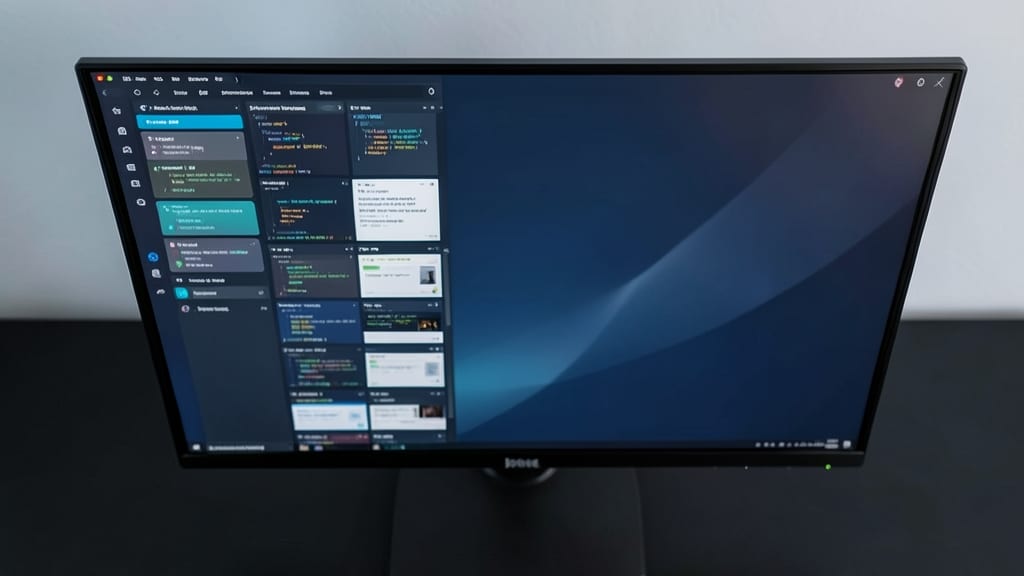
If you juggle dozens of tabs daily—like developers debugging or researchers cross-referencing sources—Microsoft Edge’s vertical tabs could be your productivity game-changer. This feature transforms cluttered horizontal tabs into a clean, space-saving sidebar, letting you focus on content instead of scrolling.
To enable it, open Edge settings, navigate to Appearance, and toggle "Show tabs vertically." The compact layout reduces screen real estate waste by up to 30%, while the hover-to-preview feature keeps navigation intuitive. Perfect for dual-monitor setups or users drowning in open projects, this tweak turns tab management from a chore into a seamless workflow.
Researchers and coders will appreciate how vertical tabs group related sites logically—no more losing track of that obscure API doc buried under 20 other tabs. Give it a try and reclaim your desktop real estate. ✨
Use Immersive Reader to Reduce Eye Strain

Tired of squinting after hours of reading dense articles or code? Microsoft Edge’s Immersive Reader transforms your screen into a distraction-free, high-contrast reading zone with just a few clicks. This built-in tool adjusts font size, spacing, and line length while offering colorblind-friendly filters and text-to-speech—ideal for reducing eye strain during long sessions.
Access it via the reader icon in the toolbar or through Edge’s Immersive Reader extension. Customize the background color (light/dark mode), font style (Dyslexia-friendly options included), and even highlight text for better focus. The tool also syncs progress across devices, so you can pick up where you left off seamlessly.
Perfect for students, developers with ADHD, or anyone with visual fatigue, this feature turns overwhelming text into a calmer, more readable experience—without needing third-party apps. ⚡
Clear Browsing Data Selectively with Edge’s Privacy Tools
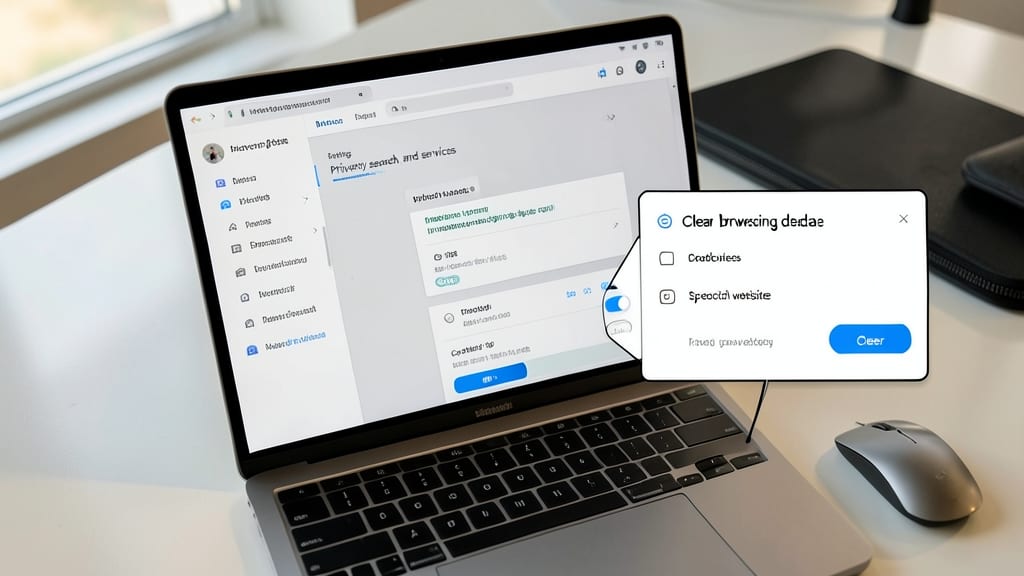
Tired of clearing all your browsing data just to troubleshoot one stubborn website? Microsoft Edge’s selective data deletion feature lets you target specific sites—no nuclear wipe required. This precision tool lets you scrub cookies, cache, and history for just the sites causing issues, like login pages or buggy web apps.
To use it, open Settings > Privacy, search, and services > Clear browsing data, then check "Cookies and other site data" and "Cached images and files" before selecting "Advanced clearing"—here, you’ll find the "From this time" dropdown to narrow deletions to a single session or specific date range. The feature even remembers your preferences, so you can set it up once and reuse it for future cleanups.
This is a game-changer for developers testing logins, privacy-conscious users who want to keep most history intact, or anyone who’s ever wasted time clearing everything just to fix one site. Try it next time you need a fresh start without losing your browsing sanity. ⚡
Enable Hardware Acceleration for Faster Performance
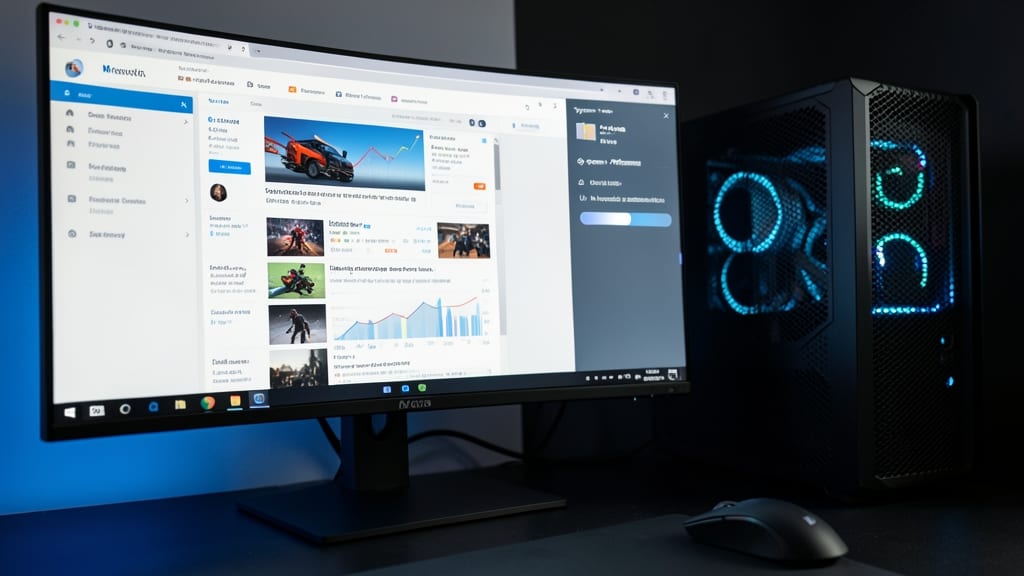
Tired of Edge feeling sluggish when scrolling through complex sites or running extensions? Hardware acceleration can transform your browsing experience by leveraging your GPU’s power—no coding or advanced setup required.
To enable it, head to Settings > System > Performance and toggle "Use hardware acceleration when available." This offloads rendering tasks like animations, video playback, and extension processing to your graphics card, resulting in smoother interactions. Users with dedicated GPUs (like NVIDIA RTX or AMD Radeon) see the biggest gains, while even integrated graphics benefit from reduced CPU load.
This tweak is perfect for gamers, video editors, or power users juggling resource-heavy tabs. Just avoid enabling it if you experience graphical glitches—Edge will prompt you to disable it automatically. ⚡
Customize Startup Pages with Collections
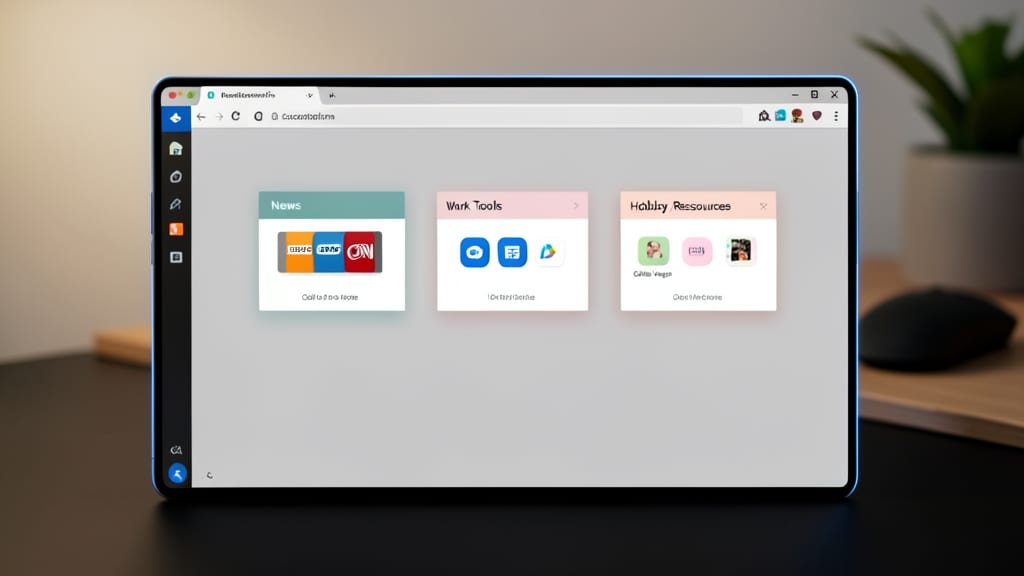
Tired of a cluttered new tab page that slows you down every time you open Edge? Collections turns your startup page into a fast, organized dashboard—no more digging through tabs or bookmarks.
Group your most-used sites (like news, work tools, or hobby resources) into custom folders that load in seconds. The feature supports drag-and-drop organization and even lets you pin collections to the toolbar for instant access. Unlike bookmarks, Collections keep your homepage clean while ensuring critical sites are always just a click away.
Power users—think developers, researchers, or creatives—will love this for zero-config workflows. Sync Collections across devices to match your setup everywhere. ✨
Block Trackers with Enhanced Microsoft Defender

Worried about third-party trackers silently monitoring your online activity? Microsoft Edge’s Enhanced Microsoft Defender integration blocks them by default, giving you faster load times and better privacy without sacrificing functionality. This isn’t just another ad-blocker—it’s a proactive shield against cross-site tracking, invisible trackers, and fingerprinting techniques used by data brokers.
Enable it in Settings > Privacy, search, and services > Tracking prevention, where you’ll find three levels: Basic (blocks known trackers), Strict (blocks most trackers), or Custom (lets you whitelist trusted sites). Studies show this can reduce tracking requests by up to 40%, making pages load quicker while keeping your activity private. The best part? It works seamlessly with Windows Defender for a unified security experience.
This is a must-enable for journalists, activists, or anyone concerned about digital surveillance—or even casual users tired of ads following them across the web. Your browsing just got a privacy upgrade. ✨
Use Edge’s Built-in Screenshot and Annotation Tools
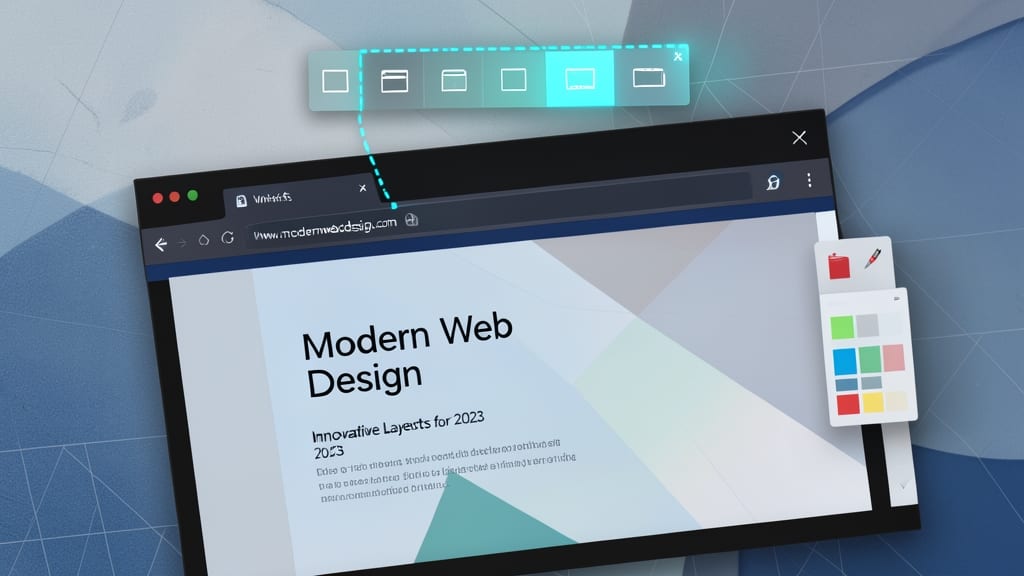
Need to capture a webpage for a report, design feedback, or quick reference? Microsoft Edge’s built-in screenshot and annotation tools eliminate the need for third-party apps—no extensions, no downloads, just instant captures with markup capabilities.
Press Win+Shift+S to open the toolbar, then select any of four capture modes: full page, visible portion, window, or node. After capturing, annotate with text boxes, arrows, highlights, or stamps—even blur sensitive info with the blur tool. Save directly to your device or upload to OneDrive, Google Drive, or Dropbox with one click.
This is a game-changer for students annotating research, designers sharing wireframes, or professionals documenting bugs. No more switching apps mid-workflow—just seamless, browser-native productivity. ✨