
Operating System
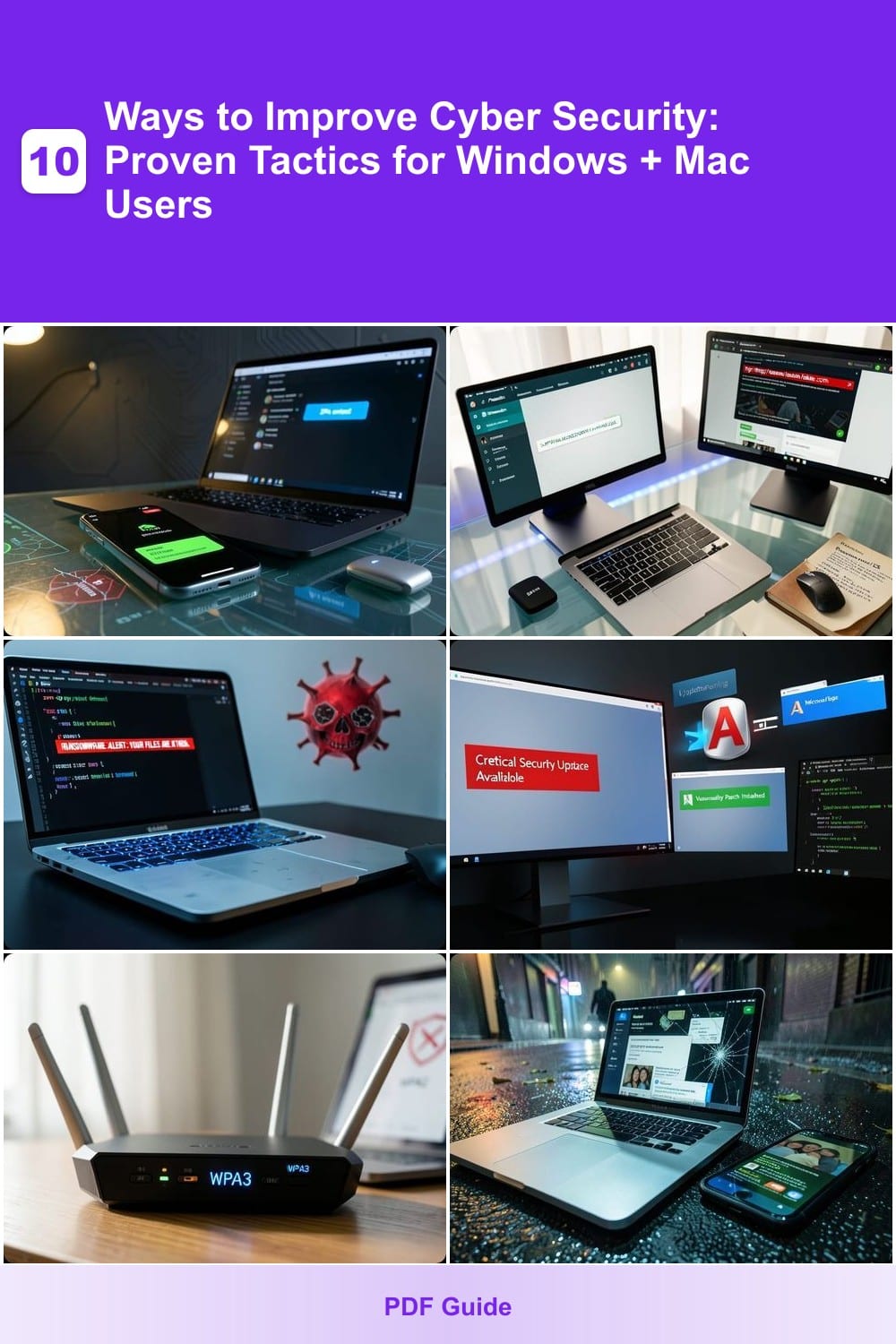
Cyber threats evolve daily, but these 10 proven cybersecurity tactics will protect your Windows or Mac from hackers, malware, and data breaches—without requiring advanced tech skills. Learn actionable steps to secure your devices and personal data right now.
Enable Two-Factor Authentication Everywhere
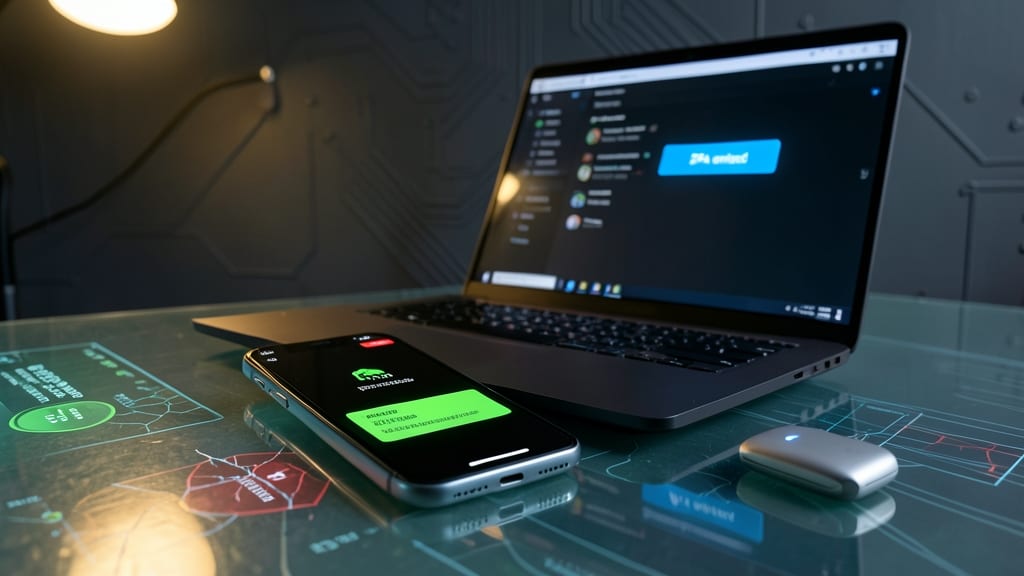
Even if your password gets leaked in a data breach, two-factor authentication (2FA) adds an extra layer that makes account takeovers nearly impossible. Most major breaches—like those hitting LinkedIn or Yahoo—could have been prevented with this one simple step, yet many users skip it for convenience.
Enable 2FA for email, banking, and social media using apps like Google Authenticator, Authy, or Duo Security. These generate time-based codes that expire every 30 seconds, making stolen passwords useless. For extra security, use hardware keys (like YubiKey) for critical accounts, which are immune to phishing attacks. Most platforms support SMS-based 2FA, but apps are far more secure.
This is the #1 defense for anyone with sensitive data—whether you're a freelancer protecting client files or a casual user guarding your social media. Start with your most critical accounts today. ✨
Use a Password Manager for Secure Logins
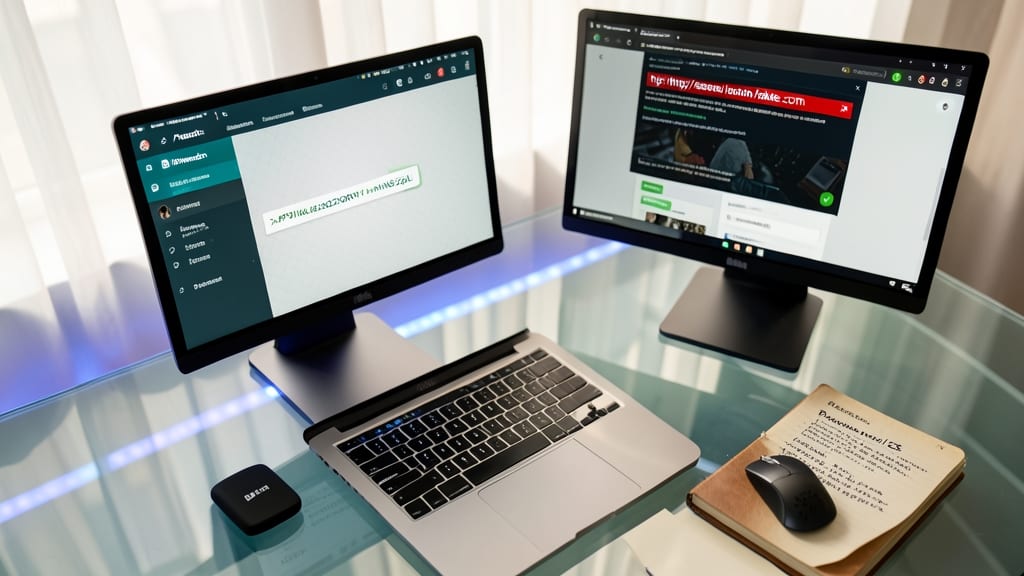
Tired of reusing the same weak passwords across accounts? A password manager like Bitwarden or 1Password generates and stores unique, 24-character credentials for every site—no more "Password123" nightmares. These tools also auto-fill logins and flag suspicious sites, cutting phishing risks dramatically.
Most premium managers offer end-to-end encryption, sync across devices, and even emergency access for family members. Free options like Bitwarden provide 90% of the features without subscription fees. The real win? One master password protects everything—no more memorizing dozens of credentials. ⚡
Install Real-Time Antivirus with Ransomware Protection
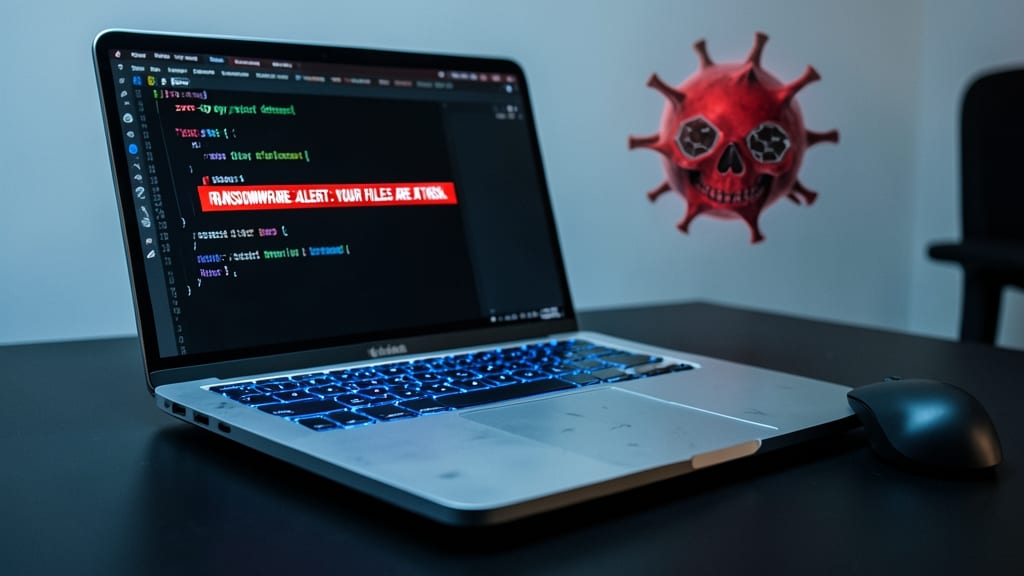
Think your Mac is safe from ransomware? Think again—zero-day exploits target all platforms, and behavioral analysis is the only way to stop them before they strike. Most free antivirus tools only scan known threats, leaving your files vulnerable to evolving attacks.
Look for real-time antivirus solutions with AI-driven behavioral detection, like Bitdefender Total Security or Kaspersky Premium. These block ransomware encryption in progress by monitoring suspicious file activity, not just signatures. For Windows users, Microsoft Defender (with cloud-delivered protection enabled) offers a free baseline, but third-party tools add layers like webcam protection and dark web monitoring.
Mac users should avoid complacency—Intego Mac Internet Security or Sophos Home Free provide real-time scanning without slowing down your system. Gamers and remote workers benefit most from these tools, as they often download untrusted files or connect to public networks. 💻
Update Operating Systems and Apps Immediately
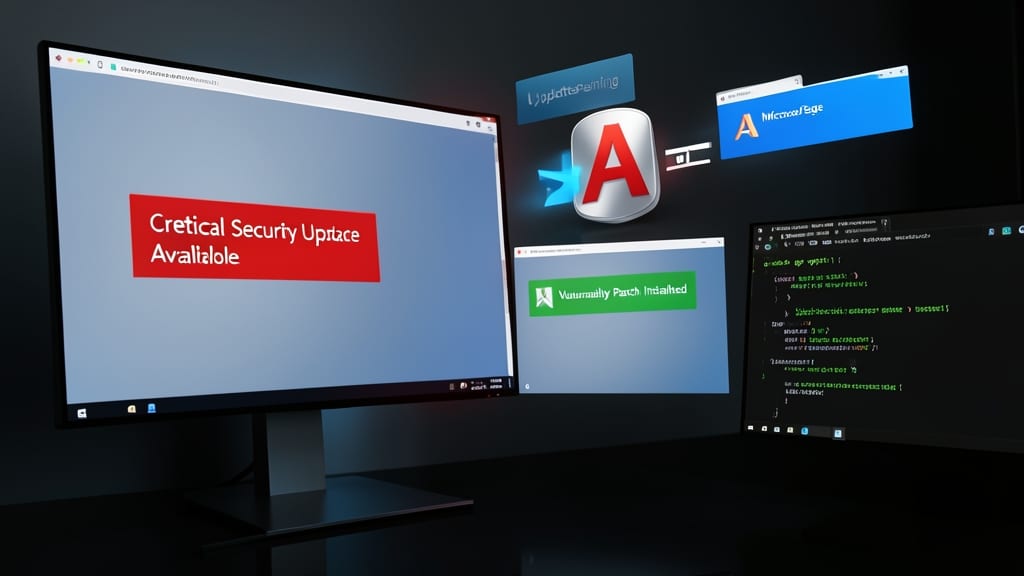
Hackers exploit unpatched software within minutes of vulnerabilities being discovered—so don’t wait for your system to nag you. Enabling automatic updates for your operating system (Windows, macOS, or Linux) and critical apps (Chrome, Edge, Firefox, Microsoft Office, and Adobe Suite) closes security gaps before they become problems.
Most modern OSes now support zero-configuration updates, meaning you can set them once and forget them. For apps, enable auto-update in their settings—especially for browsers (where 60% of exploits start) and cloud apps like Zoom or Slack. Pro tip: Use tools like Windows Update or macOS Software Update to verify patches are installed weekly.
This is non-negotiable for small business owners, remote workers, and anyone handling sensitive data. Even casual users should prioritize this—it’s the digital equivalent of locking your doors at night. ✨
Secure Your Wi-Fi Network with Strong Encryption
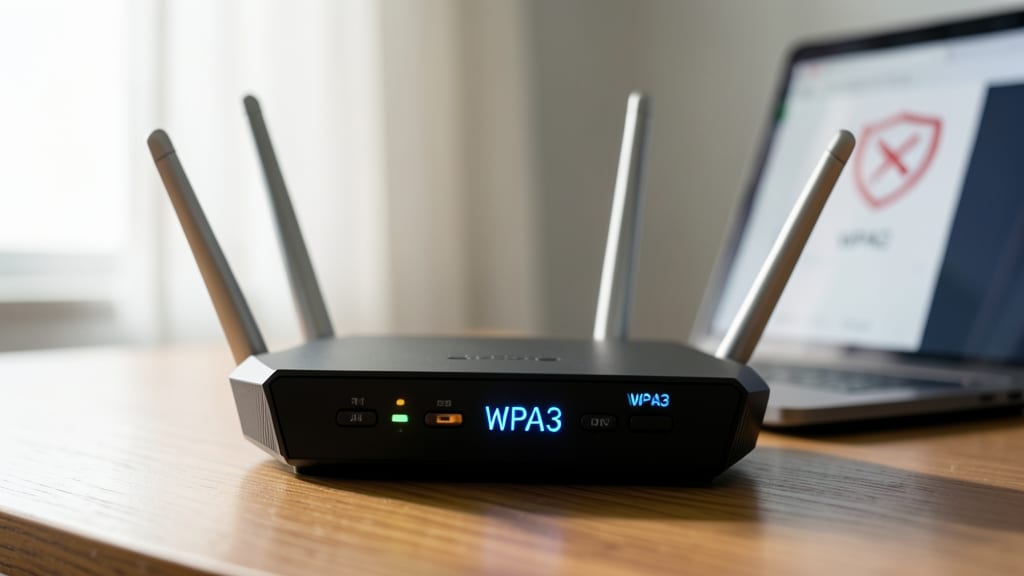
Your Wi-Fi network is the first line of defense for all your connected devices—yet most routers still use outdated WPA2 encryption, leaving them vulnerable to eavesdropping. Upgrading to WPA3 (available on most modern routers) adds forward secrecy, making it nearly impossible for hackers to crack your network even if they intercept traffic later.
Start by checking your router’s admin panel (usually via 192.168.1.1 or similar) and enabling WPA3-Personal mode. Then, create a 20+ character password with mixed case, numbers, and symbols—avoid default SSIDs like "Linksys_123." For extra security, disable WPS (it’s easily hackable) and rename your network to something generic like "DenverCoffeeShop" to avoid tipping off attackers.
This is non-negotiable for home offices or anyone using public Wi-Fi regularly—like travelers or remote workers. A secure network keeps your emails, banking, and smart home devices safe from prying eyes. 💻
Enable Full-Disk Encryption for All Devices
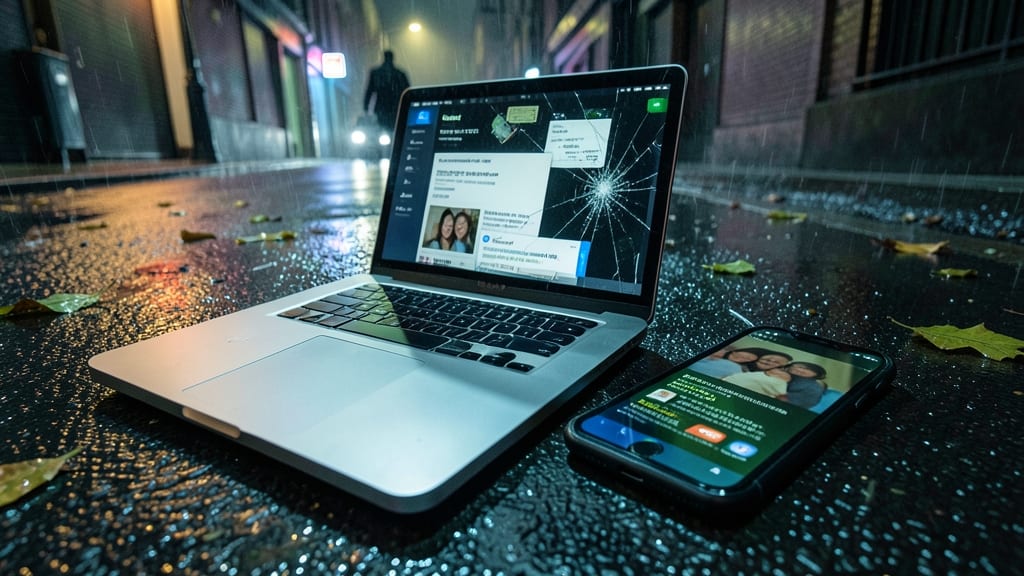
What if someone walked off with your laptop or phone today? Without full-disk encryption, they’d access your photos, emails, and financial records in minutes. BitLocker (Windows) and FileVault (Mac) encrypt your entire drive with AES-256 encryption—the same standard used by governments and banks.
Setting it up takes less than 5 minutes: Windows users enable BitLocker via Control Panel > BitLocker Drive Encryption, while Mac users activate FileVault in System Preferences > Security & Privacy. Both require a PIN or recovery key—stored securely in your Microsoft account or Apple ID. Even if your device is lost or stolen, your data stays locked away.
This is non-negotiable for remote workers, travelers, or anyone storing sensitive files—no exceptions. Your peace of mind is just a few clicks away. ✨
Recognize and Avoid Phishing Scams Daily
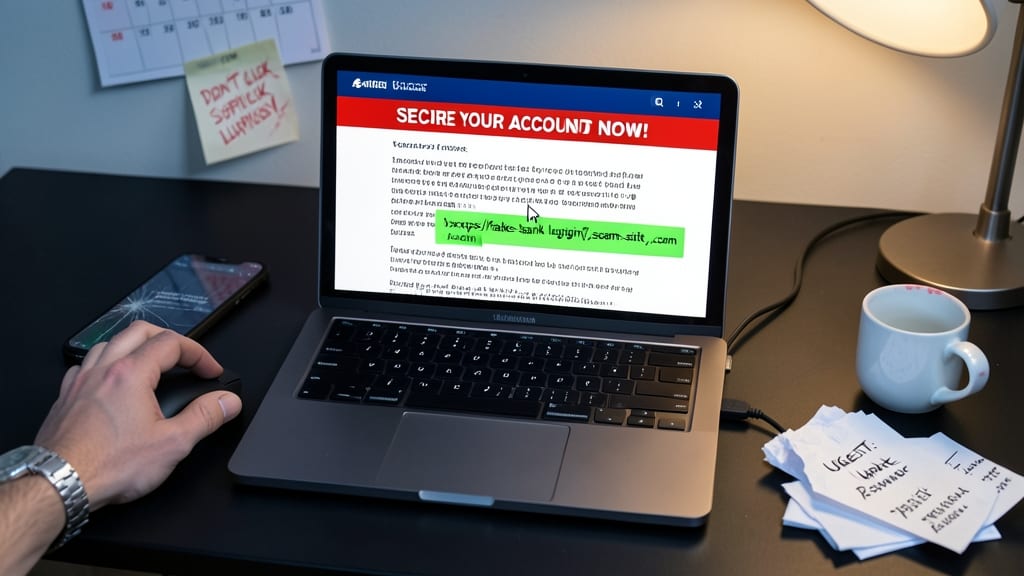
Most cyberattacks start with a single click—yet 90% of data breaches involve phishing. Train your eye to spot red flags like mismatched URLs, urgent language ("Verify your account NOW!"), or requests for sensitive info via email. These scams mimic trusted brands, so always hover over links before clicking.
Leverage real-time phishing detection tools like Netcraft Extension (free) or Malwarebytes Browser Guard to flag suspicious sites instantly. For extra protection, enable browser warnings for HTTPS-only mode in Chrome or Firefox—many phishing pages lack proper encryption.
This is your first line of defense against scams targeting small businesses and individuals alike. Start with these tools today—your inbox (and bank account) will thank you. ✨
Limit App Permissions on Your Devices
Most apps ask for way more access than they actually need—social media apps tracking your location, weather tools reading your contacts, or productivity apps demanding microphone access. A quick monthly review can cut off unnecessary data collection before it becomes a problem.
On Android, head to Settings > Apps > [App Name] > Permissions to revoke access like camera, microphone, or contacts. On iOS, go to Settings > Privacy & Security and disable suspicious permissions under each category. Focus on apps with no legitimate need for your data—like a flashlight app asking for your photos.
This habit is especially critical for casual users who install apps without reading terms, but even power users should audit permissions after major OS updates. A few minutes monthly can stop data leaks before they start. ✨
Backup Critical Data to Multiple Locations
Losing years of photos, documents, or work to a ransomware attack or dead hard drive isn’t just frustrating—it’s preventable. The 3-2-1 backup rule (3 copies, 2 media types, 1 offsite) is your insurance policy against digital disasters, and setting it up takes less time than you think.
Start with two local backups (one could be a 5TB external drive like the WD My Passport) and one cloud-based solution (Backblaze or iDrive offer unlimited storage for $7/month). Automate the process with Time Machine (Mac) or File History (Windows)—both sync silently in the background. For extra security, add versioning to recover from ransomware by restoring files from before the attack.
This setup is ideal for freelancers, photographers, and families who can’t afford to lose irreplaceable files. Set it and forget it—your future self will thank you. ✨
Monitor Financial Accounts for Unusual Activity
Fraudsters strike fast—catching suspicious transactions early can save you from financial ruin. Most banks offer real-time alerts for logins, purchases over $50, or transactions in unfamiliar locations, but you must enable them manually. Apps like LifeLock or IdentityForce take it further by scanning the dark web for leaked credentials tied to your email or phone number.
Start by setting up SMS/email alerts in your bank’s app for any activity (even small charges). Then, use tools like Have I Been Pwned? to check if your data’s been exposed. Schedule a weekly 10-minute review of statements—look for unfamiliar merchants or recurring small charges (common fraud tactics). For extra protection, enable transaction verification for high-value purchases.
This is non-negotiable for small business owners, freelancers, or anyone with recurring payments. The average fraud victim loses $1,500+ before detection—your 10 minutes could prevent that. 💪